Tools for authors
How to Import a Scrivener Project into Your Book Pro - and Export It Back Again
If you already have a book in Scrivener, the last thing you want to do is start again. Your chapters, scenes, synopses and research are all there - and Your Book Pro is designed to work around that existing project, not replace it.
You can bring your Scrivener project into Your Book Pro, use tools such as Ask the Editor, Detailed Editorial Feedback, Beta Readers, Proof Read, dictation and source analysis, then export the project back to Scrivener whenever you want to return.
See how the wider set of AI editing tools for Scrivener fits around the project you already have.
Scrivener project → Your Book Pro → Scrivener project → Scrivener
Just signed up? Start here
You do not need to create a book first. If your library is empty, the Scrivener import will create the book for you.
The route is:
My Library → Upload existing writing → Import writing → Import a Scrivener project
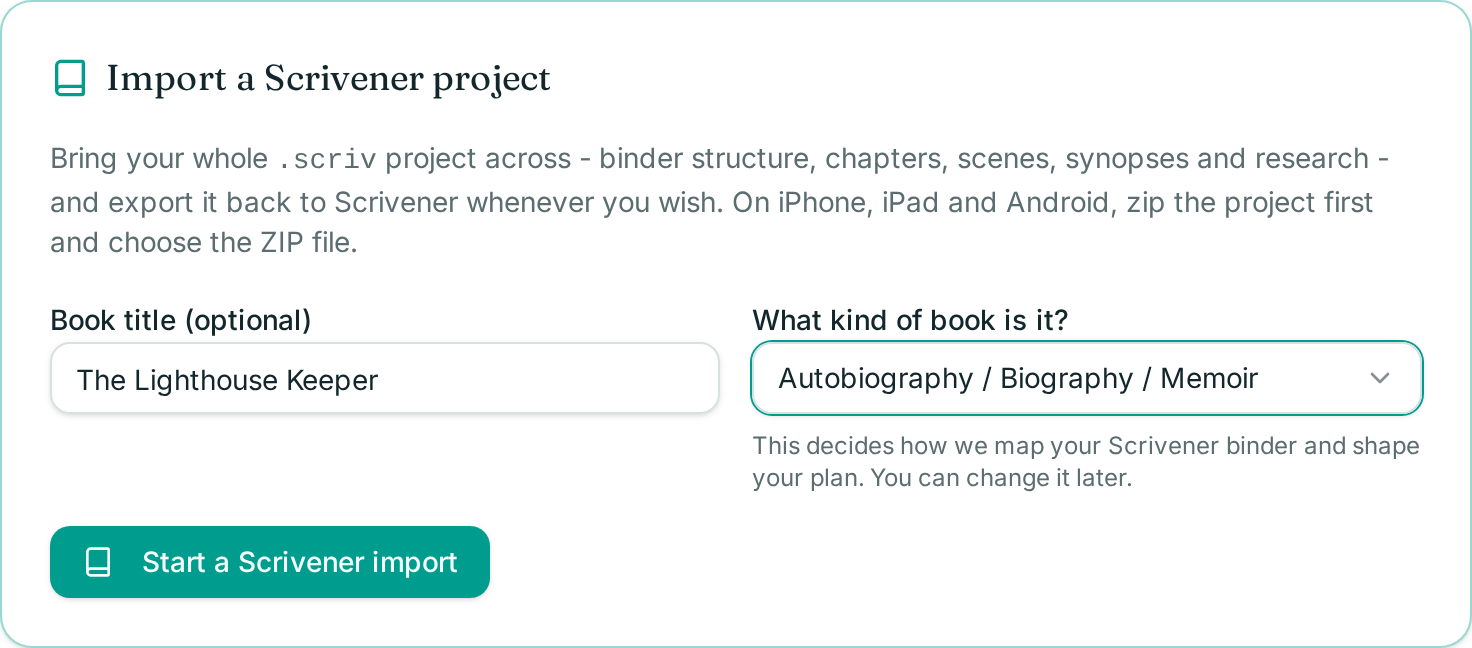
On that screen you'll see an Import a Scrivener project card. Because you have no books yet, it asks two quick questions:
- Book title (optional) - you can rename it at any time;
- What kind of book is it? (required) - novel, memoir, non-fiction, script and so on. This decides how your Scrivener binder is mapped and how your plan is shaped. You can change it later.
Press Start a Scrivener import and Your Book Pro creates the book, then opens the importer for you. There is nothing else to set up.
Already have a book? Import into it
If you already have the book in Your Book Pro, open it and go to:
Create → Upload → Import Scrivener Project
This is different from An existing manuscript, which is for files such as Word documents, PDFs, text files and RTF files. Import Scrivener Project is specifically for the native Scrivener round trip.
You can also reach the same importer from My Library → Upload existing writing → Import writing and choose which book to import into.
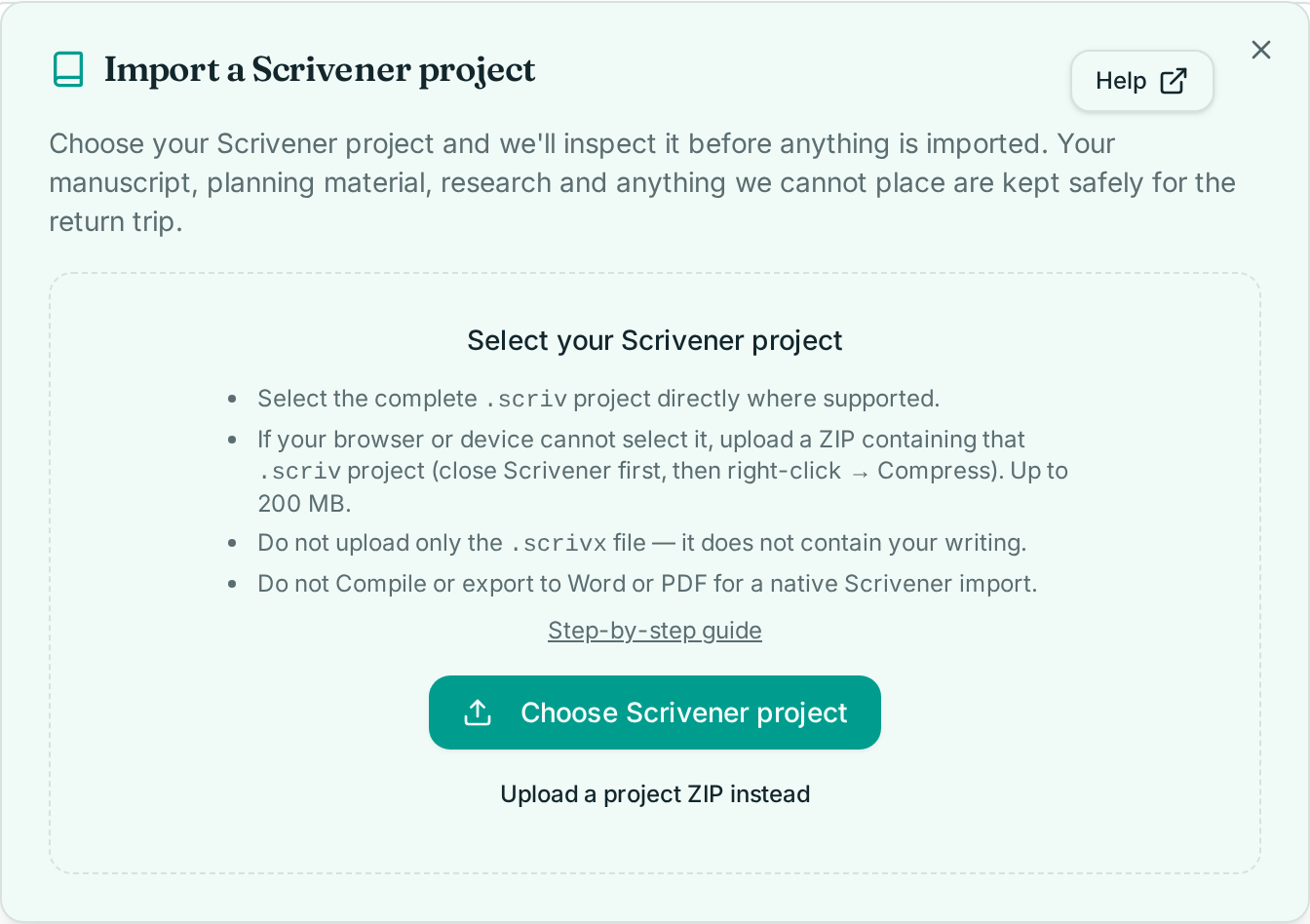
What to upload: .scriv vs .scrivx vs ZIP
Don't flatten your project first - and don't Compile it.
A .scriv project is the complete package: on a Mac it looks like a single file, on Windows it is a folder. It contains your manuscript, notes, synopses and research.
A .scrivx file is only the project's map. It does not contain your writing, so on its own it is not enough to import.
- Where your browser supports it, select the complete .scriv project directly.
- On iPhone, iPad, Android, or any browser that cannot select a project folder, zip the complete .scriv project first and upload the ZIP. Close Scrivener before you zip it, so the project is in a clean state.
- The current size limit is 200 MB.
- Never Compile or export to Word, PDF or ePub for a native import - the ordinary manuscript uploader handles those files instead.
Literature & Latte explains how to create a portable zipped copy of your project in its official guide:
How to prepare your Scrivener project →(opens in a new tab)
Scrivener is a product of Literature & Latte. Your Book Pro is an independent product and is not affiliated with, endorsed by or partnered with Literature & Latte.
The import preview
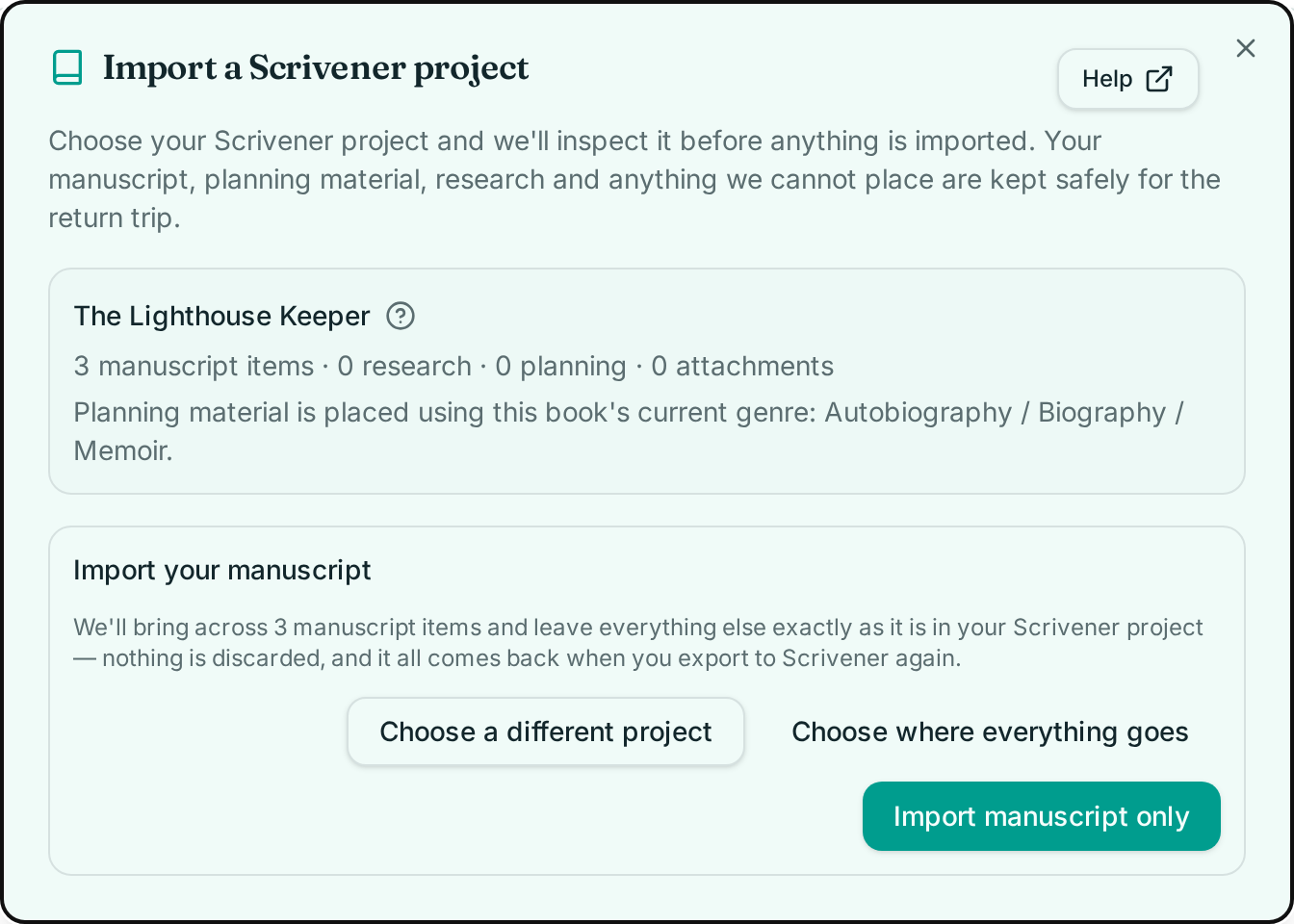
Your Book Pro inspects the project before anything is imported, then shows you what it found: manuscript items, front matter, research, planning material and attachments.
When Your Book Pro can identify the manuscript in your Binder - which is most projects - the default is simply:
Import manuscript only
That one click brings across your manuscript and front matter and leaves everything else exactly as it is in your Scrivener project. Nothing is discarded: the rest of the project is safely preserved and comes back when you export to Scrivener again.
Choose where everything goes is an optional advanced step. Use it when you want research, planning notes or other material placed in a specific destination inside Your Book Pro. You will only be asked to resolve ambiguity there, or when Your Book Pro genuinely cannot identify which part of the Binder is your manuscript.
Chapter folders and scenes
Many Scrivener novels are organised as one folder per chapter, with each scene as a separate document inside it. When Your Book Pro detects that shape, it asks how you'd like your chapters arranged:
- Chapter folders + scenes (recommended) - each chapter folder becomes one chapter in Your Book Pro, holding its scenes inside it.
- Every text document as a chapter - each scene document becomes its own chapter.
The recommended option matters: without it, a 40-chapter novel with three scenes per chapter would arrive as well over a hundred separate chapters. Keeping chapter folders with nested scenes preserves the structure you actually built.
What you'll see after the import
Once the import finishes, your material is exactly where you'd expect it:
- Your manuscript is in Shape → Edit, chapter by chapter, ready to edit.
- Chapter-level structure and synopses are in Shape → Plan on your Chapter Spine, so you can see what each chapter is meant to do.
- Where your project used chapter folders, scenes appear nested inside their chapters.
- Anything you placed through the optional advanced mapping (research, planning notes and so on) is in the destination you chose.
- Scrivener material that was preserved rather than placed is kept for the return trip - it need not appear as editable cards in Your Book Pro, and it comes back on export.
The four tabs at the top of your book cover the journey: Create brings material in (dictation, typing, uploads), Shape turns it into chapters - Shape → Edit for the manuscript itself, Shape → Plan for structure and chapter planning, and Shape → Sources for your own source material. Improve gives you editorial feedback and Beta Readers, and Prepare gets the book ready to share, export or publish.
Two places hold reference material, and they behave differently. Sources is your own source material - interviews, notes, pasted chapters, uploaded documents - things you may want to draw on or move into the manuscript yourself. Background Research is reference material Your Book Pro can consult when answering questions or giving feedback; it is never silently added to your manuscript.
Working on your book
Now you can use Your Book Pro for the things you brought the project across to do.
Ask the Editor
Ask questions about the book itself - "Does the middle lose momentum?", "Does Chapter 6 actually advance the argument?", "What is this book still missing?". The Editor works with the context of your book rather than answering as a blank general-purpose chatbot. The Editor advises; you decide.
Review the shape
Go to Shape → Plan to look at the structure of the book. Your imported chapter planning and synopses sit alongside the rest of your Book Plan, and you can reorganise, add new planning cards and decide what the manuscript still needs.
Get Detailed Editorial Feedback
Use the Improve tools to examine the manuscript according to the kind of book you are actually writing - a memoir is not judged like a novel, and a business book is not judged like a children's book.
Add Beta Readers
Ask different Beta Readers to work through the manuscript and tell you what they understand, expect, enjoy or find confusing. One reader's opinion should not dictate your book; different reactions can be extremely revealing.
Proof Read
When the larger editorial decisions are done, use Proof Read to look for spelling, grammar, punctuation, missing words and passages that may not make sense as intended. Suggested changes remain yours to accept or reject.
Add new material
You are not limited to what came from Scrivener. Type directly into the book, dictate new passages, upload interviews, bring in podcast episodes or attach Background Research. Your Scrivener project becomes the starting point, not a cage around the book.
Exporting back to Scrivener
When you're ready to return to Scrivener, go to:
Prepare → Export to Scrivener
That's the whole path - you do not need to complete the Readiness Checker or anything else first.
The download is a ZIP. Unzip it first, then open the extracted .scriv project in Scrivener. Double-clicking the ZIP itself, or trying to open it directly from the browser, will not work.
For a book originally imported from Scrivener, the round trip preserves the project structure and identities needed to connect the exported project back to the one you started with. Your current manuscript, chapter structure, supported planning information and Research can make the return journey, and material without a direct Your Book Pro equivalent is preserved rather than silently discarded.
Literature & Latte's official guide explains how to restore and open a zipped Scrivener project:
How to open your project in Scrivener →(opens in a new tab)
Want to move selected material into another existing Scrivener project instead?
How to Copy Items Between Scrivener Projects →(opens in a new tab)
Troubleshooting
Most Scrivener round-trip problems have a single, fixable cause. Find the symptom below and try the step before contacting support.
Try it with an example project
If you want to see the importer work before you risk your own manuscript, download this small sample project (about 6 KB): a three-chapter novel with one chapter folder containing two scenes, plus a Research folder that is skipped by default.
Download The Lighthouse Keeper.scriv.zip →
Upload the ZIP exactly as downloaded. Delete the imported book afterwards if you don't want it in your library.
I don't have a book in Your Book Pro yet
You don't need one. Go to My Library → Upload existing writing → Import writing and use the Import a Scrivener project card. Choose the type of book, press Start a Scrivener import, and the book is created for you.
I clicked Import and nothing seemed to happen
Only retry if the import clearly never started - for example, no book appeared in your library and no error was shown. If you have no books at all, open the Import a Scrivener project card on the Import writing page and make sure you've chosen the type of book - the Start button stays inactive until you do.
If the import started, reported an error, or the result looks partial, do not import again - repeated imports can duplicate chapters. Check the book in your library first, then contact support and we will bring anything missing across for you.
Your Book Pro says that is not a Scrivener project
A lone .scrivx file is only the project map and does not contain your writing. A compiled Word document, PDF or ePub is not a native import either.
Fix: Close the project in Scrivener, then choose the whole .scriv project package (macOS) or folder (Windows). If your device cannot select it directly, compress that project into a ZIP and upload the ZIP.
"We could not read that project" or the upload finishes but nothing is found
This usually means the ZIP contains a compiled export rather than the live project, or the project was still open in Scrivener when it was zipped.
- Close Scrivener completely before compressing the project.
- Make sure the ZIP contains the complete .scriv package or folder, not a single .docx, .pdf, .epub or .scrivx file.
- On macOS, right-click the .scriv package and choose Compress.
- On Windows, right-click the .scriv folder and choose Send to → Compressed (zipped) folder.
The wizard says my file type is not supported
Your Book Pro's Scrivener importer needs the live Scrivener project package. Word documents, PDFs, ePubs, RTFs, plain text files and compiled Scrivener exports are not native Scrivener projects and will be rejected.
Fix: Use the live .scriv project or a ZIP of that project. If you only have a Word, PDF or text manuscript, use My Library → Upload existing writing → An existing manuscript instead.
Your Book Pro asks which part of the project is the manuscript
This happens when the Binder contains more than one large body of text - for example, a Draft folder, a Research folder and an Old Drafts folder - and Your Book Pro cannot tell which one is the current book.
- Point the wizard at the folder that actually contains the book you are working on now.
- Do not rename or reorganise folders in Scrivener first; the importer is designed to handle unusual structures.
- If you have multiple manuscript-like folders, choose the one you want to edit in Your Book Pro. Everything else is preserved for the return trip.
My project is larger than 200 MB
Very large projects usually owe their size to high-resolution images, audio or video in Research. Reduce or compress that media before zipping - the manuscript and planning material are the most important parts for the round trip. If the project is still too large, contact support rather than splitting your Scrivener project apart.
The import reported an error, or the result looks partial
Please don't upload the same project over and over - repeated imports can duplicate chapters. Everything we could read is already in your book. Check the book first; if anything is missing, contact support and we will bring it across for you.
The import seems to hang or time out
Large projects, slow connections, or a project still open in Scrivener can cause the upload or inspection to take longer than expected. The importer will report a timeout if it cannot finish in a reasonable time.
- Close Scrivener completely before uploading.
- Compress the project into a ZIP and upload the ZIP rather than the raw .scriv package.
- Remove or compress very large media files (images, audio, video) in Research before zipping.
- Do not click Import repeatedly while waiting; only start a fresh import if the previous one clearly failed with no book created.
- If the project is over 200 MB, contact support instead of retrying.
My scenes arrived as over a hundred chapters
Your project is organised as chapter folders containing scene documents, and the import was told to treat every text document as a chapter. Next time, choose Chapter folders + scenes on the preview screen - each chapter folder becomes one chapter holding its scenes. If this has already happened, contact support rather than deleting chapters one by one.
The structure doesn't look like my Binder
Scrivener projects can store manuscript text in many places, and Your Book Pro is built to handle unusual structures - you do not need to rename or reorganise folders in Scrivener before importing. Only when the structure is genuinely ambiguous will the wizard ask you to point it to the right place.
The exported project will not open in Scrivener
The export is a ZIP containing a complete Scrivener project, and it must be unzipped first.
- Download the ZIP to a folder you control.
- Extract it (macOS: double-click; Windows: Extract All).
- Open the extracted .scriv project in Scrivener, not the ZIP itself.
- If Scrivener asks about a newer format, choose to update the project normally.
The Scrivener offer did not unlock
The 50% discount is earned only after a genuine Scrivener project is successfully imported during your free month. Opening the offer page, clicking the button or uploading a non-Scrivener file does not qualify. If you imported during a previous billing period, the offer window may have closed.
Frequently asked questions
- Do I need to create a book in Your Book Pro before importing my Scrivener project?
- No. If you have no books yet, go to My Library, choose Upload existing writing, then Import writing, and use the Import a Scrivener project card. It asks for an optional title and the type of book, creates the book for you, and opens the importer.
- What file do I upload to import a Scrivener project?
- Select the complete .scriv project directly where your browser supports it. On iPhone, iPad, Android or a browser that cannot select a project folder, zip the complete .scriv project (close Scrivener first) and upload the ZIP. A lone .scrivx file is only the project map and is not enough, and a compiled Word, PDF or ePub file is not a native import.
- Does importing change my original Scrivener project?
- No. Your Book Pro only reads the copy you upload. Your original project on your own machine is untouched, and it is still sensible to keep your usual Scrivener backups before you import.
- What comes across from Scrivener?
- Your manuscript and front matter come across as your book's chapters and structure, with synopses feeding the chapter plan. If your project uses chapter folders containing scene documents, you can keep that nesting so scenes do not become hundreds of separate chapters. Everything else in the project is safely preserved for the return trip, even where it is not shown as an editable card in Your Book Pro.
- Do I have to map every part of my project before importing?
- No. When Your Book Pro can identify the manuscript in your Binder, the default is Import manuscript only - one click, no mapping decisions. Choose where everything goes is an optional advanced step for placing research, planning and other material exactly where you want it.
- Can I export back to Scrivener afterwards?
- Yes. Prepare → Export to Scrivener builds a ZIP containing an updated Scrivener project. Download it, unzip it, then open the extracted .scriv project in Scrivener. You do not need to complete anything else first.
- Does importing a Scrivener project unlock the Scrivener offer?
- Start free on Plus, with 1,000 welcome credits that never expire. Import a genuine Scrivener project, keep writing in either tool, and move the manuscript back to Scrivener whenever you wish. No card, and nothing that renews.
- How does Your Book Pro handle deeper Scrivener folders and scenes?
- Scrivener allows folders and documents to be nested to many levels. Your Book Pro deliberately simplifies this to a practical Chapter → Scenes structure for editing and editorial work. If your Scrivener project has deeper nesting, Your Book Pro preserves the material and its order, but presents it within the relevant chapter rather than reproducing every Binder level. The original project structure is retained for the Scrivener round trip.
- Can I try the importer with an example project?
- Yes. Download the sample Scrivener project, The Lighthouse Keeper, as a zipped .scriv folder and import it to see how chapter folders, scenes and research material are handled. The sample is a small, safe way to test the round trip before importing your own work. Download The Lighthouse Keeper sample project
Scrivener is a product of Literature & Latte. Your Book Pro is an independent product and is not affiliated with, endorsed by or partnered with Literature & Latte.